
This article is a companion to my talk at “Я 💛 Фронтенд” 2026 Local Models: How to Run AI in the Browser. It was my first talk, so I’m glad everything went well, and I received a lot of support from the conference team and the audience, for which I’m very grateful. Now I want to dive deeper into the topic of local models, because it’s quite extensive, and it was hard to cover everything in a 30-minute talk.
Part 1. Core Principles and Examples of Local Models
Introduction
When we talk about AI, we usually mean a model deployed on a server that processes requests from all users. This is the standard approach that works for most use cases, but to ensure efficient model inference, you need a lot of resources. So, when an application needs any AI functionality, developers face a choice:
- Use model providers (e.g., Openrouter) or call model APIs directly (e.g., ChatGPT or DeepSeek API).
- Host a model on your own servers, find the hardware, infrastructure, and specialists to support it.
And that’s a perfectly reasonable choice when you need full-featured AI for generating long texts or processing large amounts of data.
But… What if you wanted to embed a small interactive feature into your application, such as voice input recognition, translation of selected text fragments, or object recognition in images, but you don’t have the resources to host a model on your server, and sending data to third-party APIs is prohibited by company policy (for example, you’re developing a corporate application), or you simply don’t want to pay for third-party API calls. What if there’s an option where AI capabilities in a limited scope can be implemented entirely on the client? This can be useful when you don’t want to or can’t use server-side models, and your task requires interactivity.
So, we arrive at the term client-side AI (client-side models) — AI whose inference happens on the client. This term seems most accurate to me, by analogy with client and server components. An alternative term is local-first AI (local-first models). Inference in artificial intelligence is the process of using a trained neural network or ML model to process new data and produce results in real time.
To better understand the difference between the approaches, let’s compare two model interaction schemes.
Server-side model workflow
In the standard scheme, the browser sends a request to the server, where the model performs inference and returns the result.
    sequenceDiagram
	    participant U as User
	    participant B as Browser
	    participant S as Server
	    participant AI as AI Model<br>on Server

	    U->>B: Input query
	    B->>S: HTTP request
	    S->>AI: Inference
	    AI-->>S: Result
	    S-->>B: Response
	    B-->>U: Display result
Client-side model workflow
With client-side AI, the model is loaded once directly into the browser, and everything happens locally after that: data never leaves the user’s device, and the server is only needed for the initial delivery of model files.
    sequenceDiagram
	    participant U as User
	    participant B as Browser
	    participant C as Browser Cache
	    participant S as Server
	    participant AI as AI Model<br>in Browser

	    B->>C: Check cache
	    alt Model not in cache
	        B->>S: Download model files
	        S-->>B: Model files
	        B->>C: Save to cache
	    else Model in cache
	        C-->>B: Model files from cache
	    end
	    B->>AI: Initialize model

	    U->>B: Input query
	    B->>AI: Inference (WebGPU / WASM)
	    AI-->>B: Result
	    B-->>U: Display result
WebGPU and client-side AI
Recently, the WebGPU API gained support in all major browsers, which made it possible to use GPU capabilities through a browser web API. Thanks to this, it’s now possible to embed AI into user interfaces much more efficiently without increasing the server load. In the standard scheme, where the user only writes a query in the browser and the model is hosted on the company’s server responding via API, the growth of server costs (or costs for third-party model provider APIs) increases proportionally with the number of users. Running models via WebGPU on the user’s GPU allows you to avoid this.
WebGPU support is not yet 100%, and on Linux, WebGPU is only available behind flags, but support will grow soon, and that’s why I’d like to talk about how WebGPU is related to client-side AI, and what capabilities we already have.
What do you need to do to get client-side AI? Actually, not much.
- Choose a library that takes care of all the heavy lifting (model loading, caching, optimization).
- Integrate it.
- Use it.
Voilà, you’re awesome! Okay, in practice, for some use cases this path will be more complex, but in general that’s the way. First, I’ll give a few examples to show that client-side AI actually works.
Running local models
Currently, there are two main paths for running local models in the browser:
- WebGPU — a modern low-level web standard and JavaScript API that provides direct high-performance access to the graphics processor (GPU) in the browser.
- WebAssembly (WASM) — a binary format that allows running code written in languages like C++, Rust, or Go in the browser at near-native speed. In the context of client-side AI, some runtimes for running models are compiled to WASM (e.g., llama.cpp or Apache TVM), and auxiliary operations are also performed there — tokenization, memory management, scheduling computations on the GPU.
There is also the WebNN API — a new web standard that allows web applications and frameworks to accelerate deep neural networks using GPUs, CPUs, or purpose-built AI accelerators such as neural processing units (NPUs). This API is still in development; the current support status can be found here: WebNN requirements.
WebGPU works in:
- latest versions of Chromium-based browsers (Chrome, Edge, etc.) on Windows, Android;
- latest versions of Firefox on Windows, Mac (macOS 26+, Apple Silicon);
- latest versions of Safari (macOS, iOS/iPadOS, visionOS).
Development is still in progress for other platforms. To use it on Linux, you need to enable flags:
For Chromium-based browsers:
- chrome://flags/#enable-unsafe-webgpu
- chrome://flags/#ignore-gpu-blocklist
For Firefox:
- dom.webgpu.enabled
- gfx.webgpu.ignore-blocklist
The current WebGPU support status can be found here: https://github.com/gpuweb/gpuweb/wiki/Implementation-Status
WebAssembly is currently supported by all major browsers, making it a stable fallback for using local models. However, inference through it will be slower, since WebGPU uses the user’s device GPU, which provides a speed boost, while WebAssembly only has access to CPU capabilities, which is significantly slower.
Demos
Different libraries provide access to either WebGPU, WebAssembly, or both. So I’ll provide several examples divided into two groups: with and without WebGPU support, so you can try the demos even if you don’t have a browser with WebGPU support at hand. For each demo, I’ll add links to the repository — you can run the demo locally and look at the code in more detail (sometimes demos from Hugging Face may load poorly without a VPN).
Most demos implement this algorithm:
- You select a model and click “Load”
- Model weights and resources are downloaded — the first time from the server, subsequently from local storage (usually Cache Storage)
- The backend is initialized (WASM or WebGPU) — buffers are allocated, tensors are loaded into memory/GPU, for WebGPU pipelines/shaders are created (compilation) and GPU buffers are set up.
- Warm-up (optional) — before the first real request, a short test input can be sent to the model. This allows the browser to pre-compile and cache GPU shaders, so the user’s first real request isn’t slow.
- You select a task or start a chat — after that, a prompt is formed and the input is tokenized.
- Inference (generation) happens — step-by-step token generation (can be streaming, where tokens are displayed dynamically as they’re generated), with behavior depending on the backend (WASM — CPU; WebGPU — GPU).
- Post-processing and output — detokenization, rendering in the UI; often happens in a Web Worker for non-blocking UI.
Local models, like server-side ones, can work with different data types, such as text (LLM — Large Language Model), audio (Speech-to-Text/ASR — automatic speech recognition, Text-to-Speech), images (VLM — Vision Language Model), video (Video Models), as well as multiple data types simultaneously (multimodal models).
Demos for browsers with WebGPU support
Working with text
- https://chat.browserai.dev/ — a sandbox for using LLMs via the BrowserAI library;
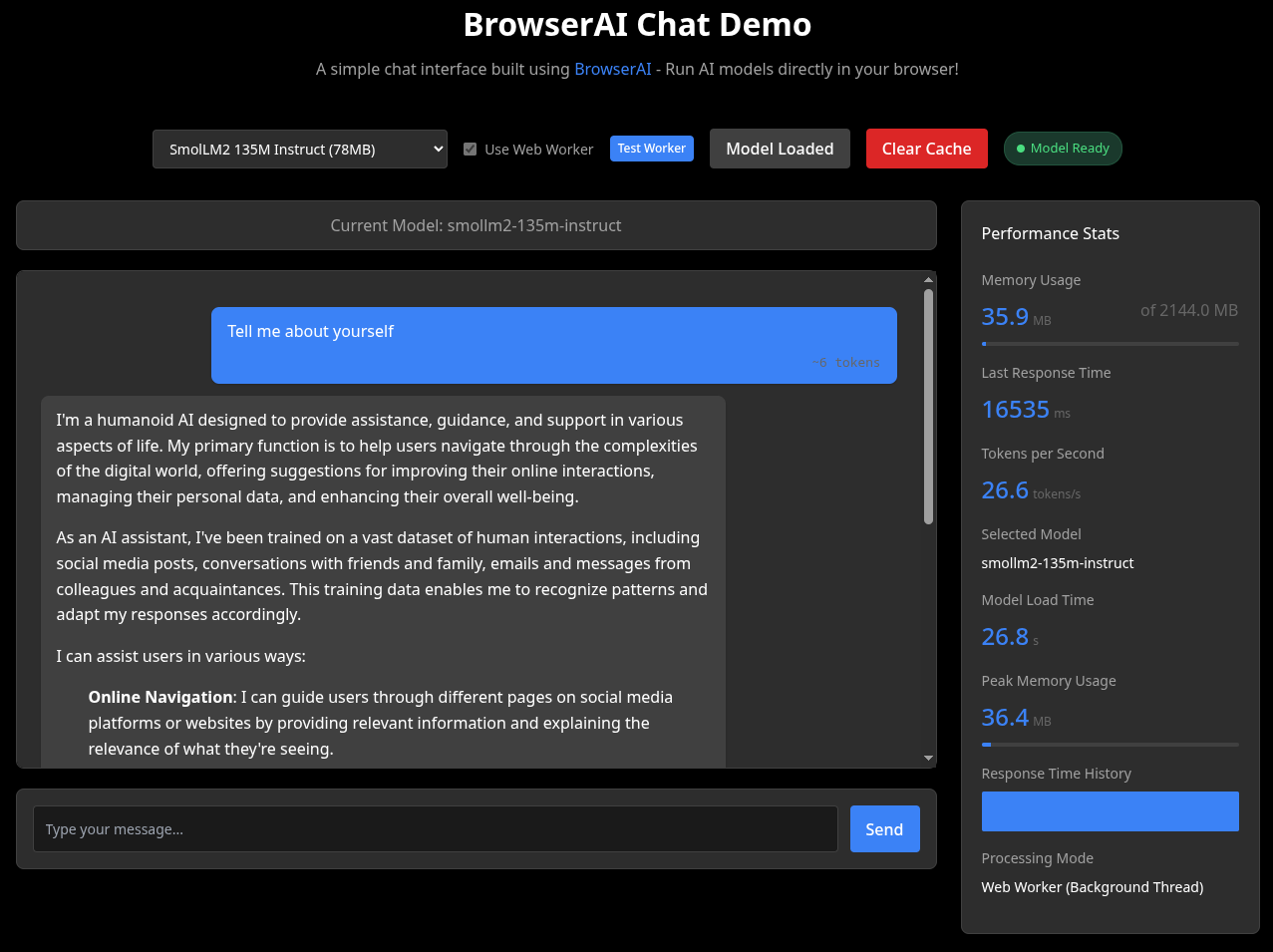
BrowserAI demo interface
This demo shows model usage statistics in detail, which is why I put it first. Available parameters include:
- Memory Usage: 35.9MB of 2144MB — how much RAM the model is currently using and the approximate available limit in the browser.
- Last Response Time: 16535ms — how long the last response generation took from sending the request to receiving the complete text.
- Tokens per Second: 26.6 tokens/s — the model’s generation speed, how many text tokens it produces per second (the main performance metric).
- Selected Model: smollm2-135m-instruct — the currently loaded language model, a small instruction model with approximately 135 million parameters.
- Model Load Time: 26.8s — how long it took to load and initialize the model (downloading weights, unpacking, and preparing for inference).
- Peak Memory Usage: 36.4MB — the maximum amount of memory the model occupied since launch.
- Response Time History — history of response times for previous requests, used for performance analysis.
- Processing Mode: Web Worker (Background Thread) — the execution mode where the model runs in a separate browser thread (Web Worker), so it doesn’t block the page’s main UI thread.
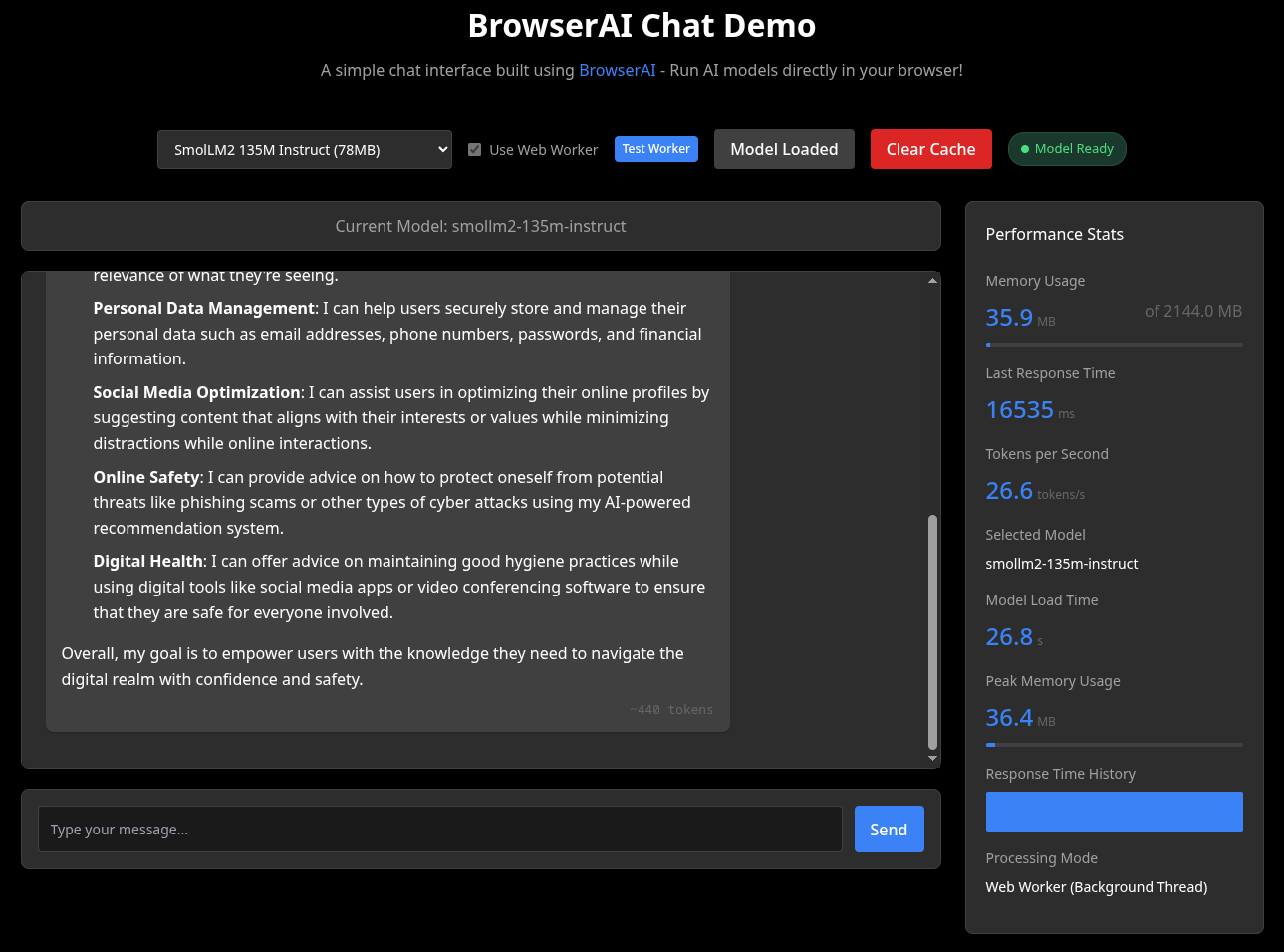
The end of chat displays the total number of response tokens — 440
- https://chat.webllm.ai/ and https://huggingface.co/spaces/mlc-ai/webllm-playground — sandboxes for using LLMs via the @mlc-ai/webllm library;
Model usage statistics:
- Prompt: 27 — the number of tokens in the input request (your text sent to the model).
- Completion: 302 — the number of tokens the model generated in the response.
- Total: 329 — the total number of tokens processed by the model (Prompt + Completion).
- Prefill: 15 tok/s — the speed of processing the input text (prompt) before starting response generation. At this stage, the model passes all prompt tokens through the model layers to form internal representations and fill the KV-cache, which is then used during generation.
- Decoding: 7 tok/s — the response generation speed, where the model predicts the next token one at a time (this is usually slower and determines how quickly text appears).
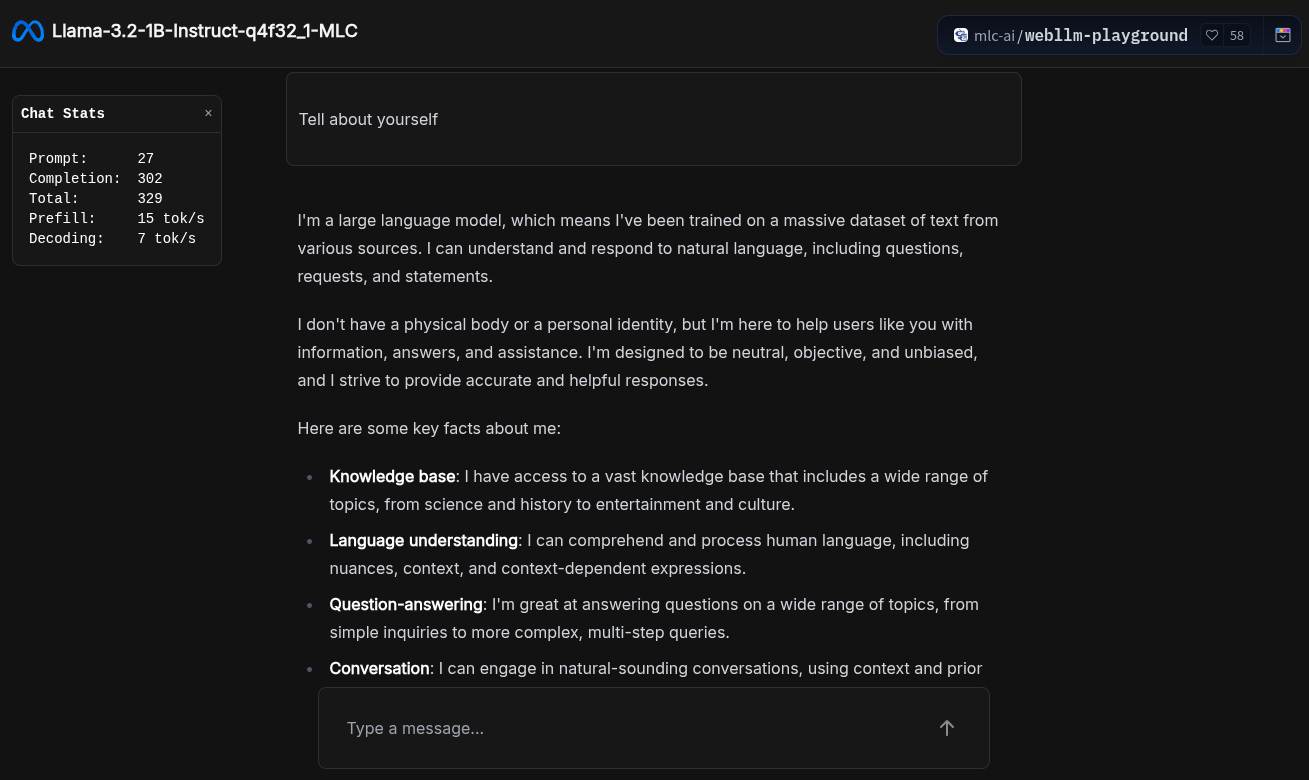
Demonstration of the Llama-3.2-1B-Instruct model via WebLLM
- https://huggingface.co/spaces/LiquidAI/LFM2.5-1.2B-Thinking-WebGPU — a fast bot with a “thinking” (reasoning) mode.

Liquid AI demo interface
LFM2.5-1.2B-Thinking — a general-purpose model with 1.2 billion parameters. This demo uses this model in ONNX format — LFM2.5-1.2B-Thinking-ONNX, connected via the Transformers.js library and running through WebGPU.
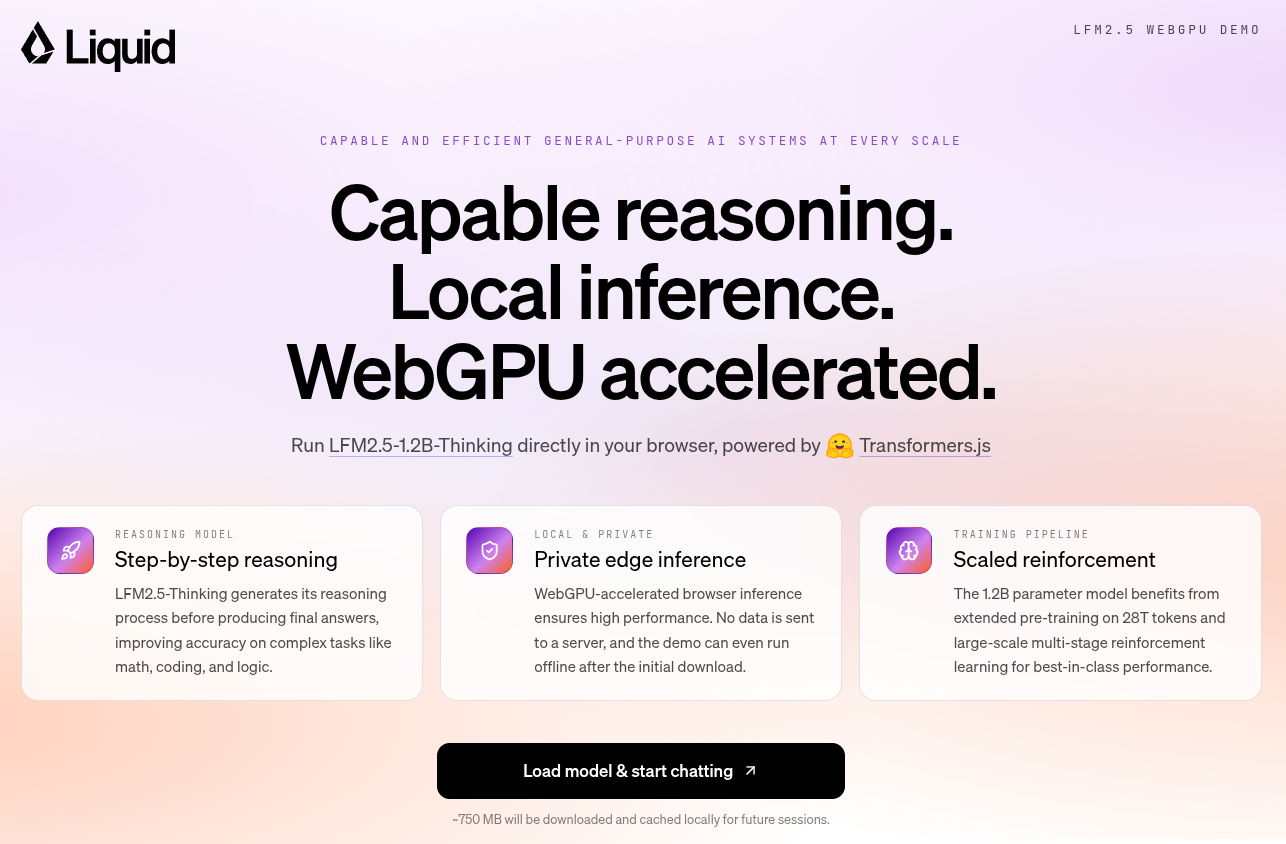
Liquid AI demo information
Supported languages: English, Arabic, Chinese, French, German, Japanese, Korean, Spanish.
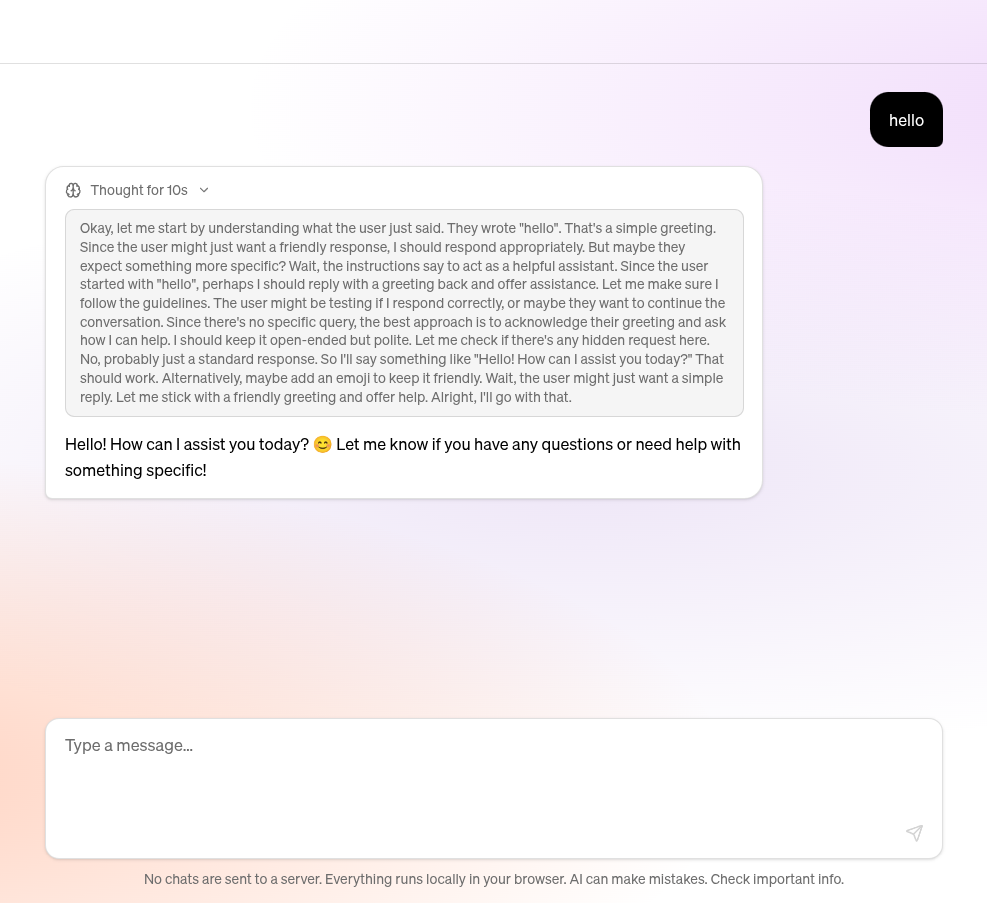
Liquid AI chat demonstration
Working with audio
- https://huggingface.co/spaces/Xenova/realtime-whisper-webgpu — client-side real-time speech recognition (Whisper). Code: https://github.com/xenova/whisper-web/tree/experimental-webgpu
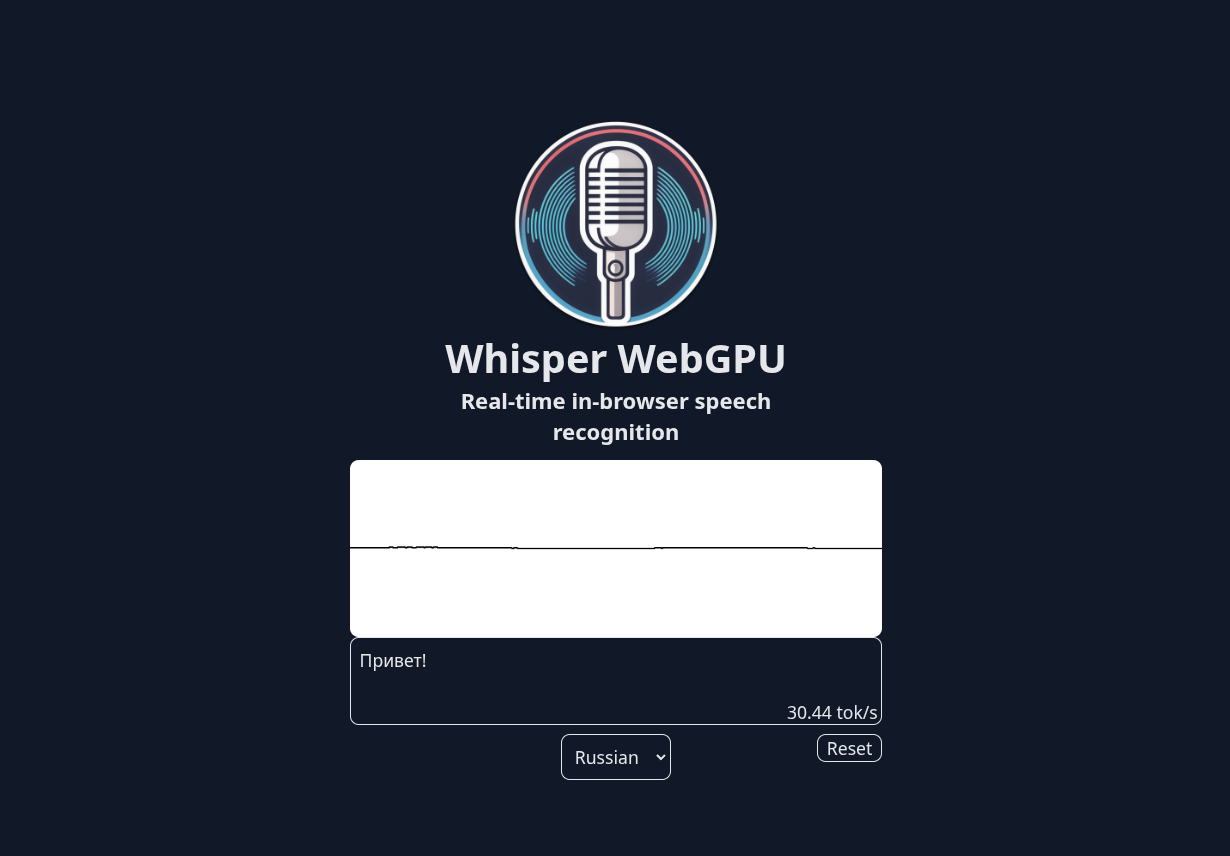
Whisper WebGPU demonstration
Working with images
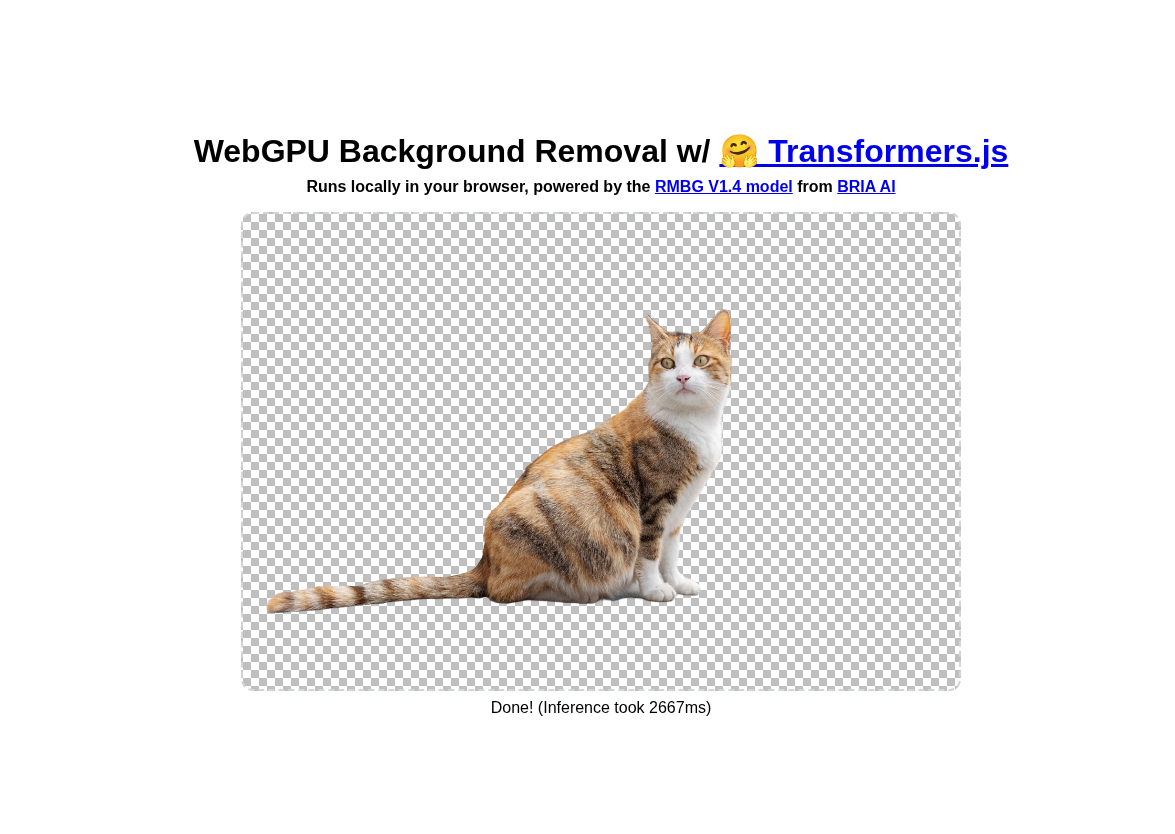
- https://huggingface.co/spaces/Xenova/remove-background-webgpu — background removal from images. Code: https://github.com/huggingface/transformers.js-examples/tree/main/remove-background-webgpu
Background removal demo interface on WebGPU after model loading, “Ready” state (model is ready for use):
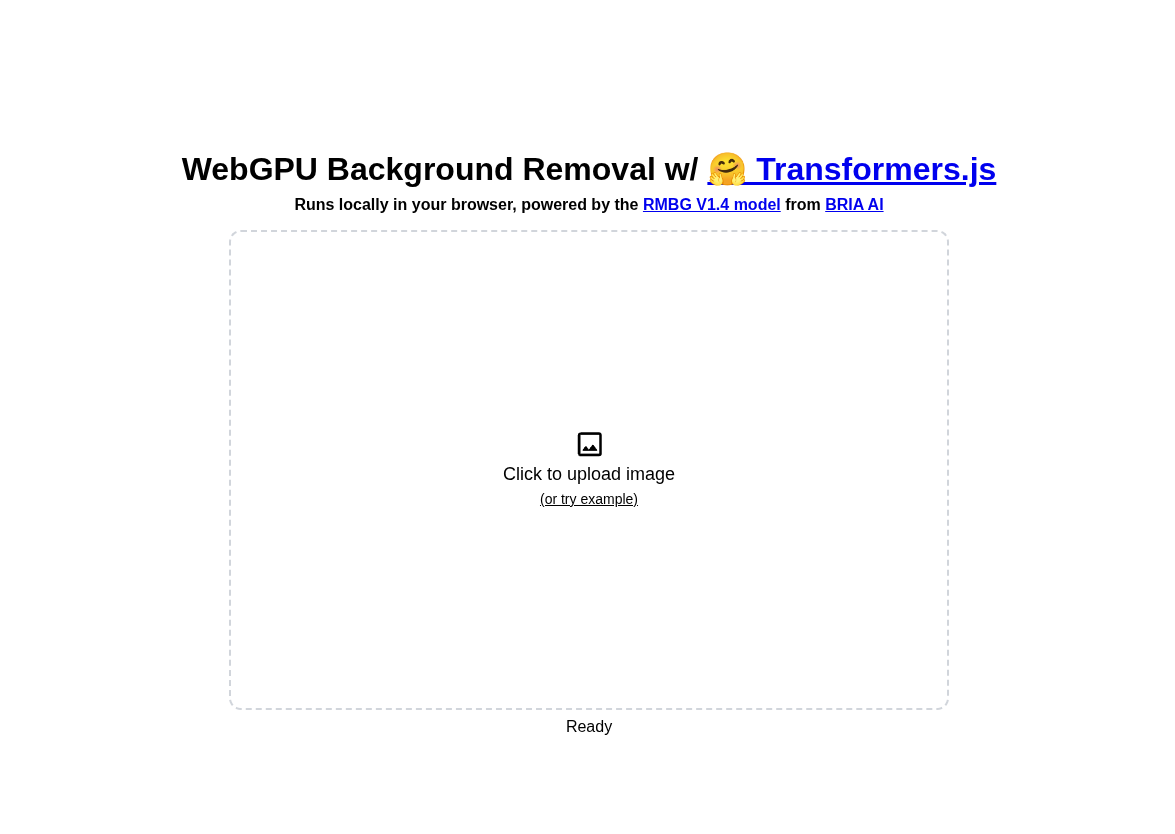
Background removal demo interface on WebGPU
Image processing in progress:
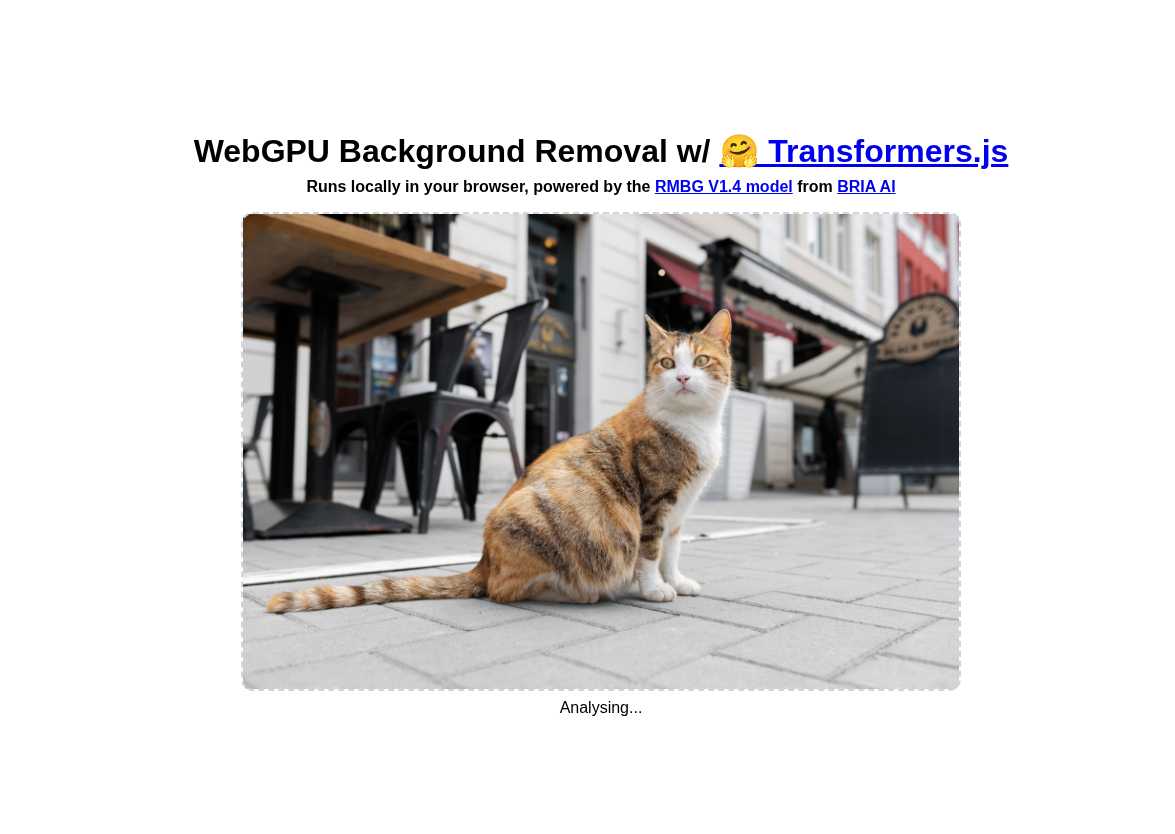
Background removal process on WebGPU
Image processing result (took ~2.6s):
Background removal result on WebGPU
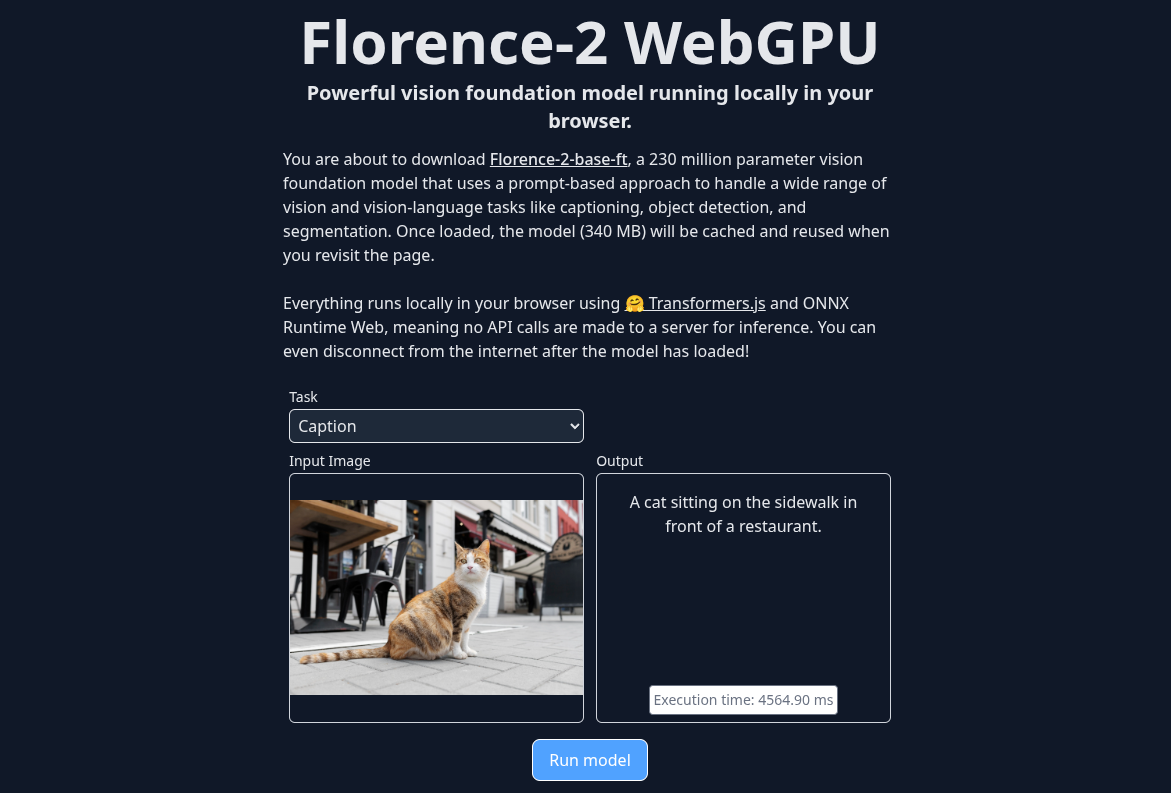
- https://huggingface.co/spaces/Xenova/florence2-webgpu — object recognition in images. Code: https://github.com/huggingface/transformers.js-examples/tree/main/florence2-webgpu
Image processing and caption generation result (took ~4.5s):
Object recognition in an image using WebGPU
Demos for browsers without WebGPU support (work via WebAssembly)
Working with text
- https://huggingface.co/spaces/ngxson/wllama — a sandbox for using models via the Wllama library;
- https://rahuldshetty.github.io/llm.js-examples/playground.html — a sandbox for using models via the LLM.js library;
- https://github.com/huggingface/transformers.js-examples/tree/main/react-translator — a translation example based on Transformers.js in a React application. Code: https://github.com/huggingface/transformers.js-examples/tree/main/react-translator
- https://huggingface.co/spaces/Xenova/adaptive-retrieval-web — semantic search (search by meaning). Code: https://github.com/huggingface/transformers.js-examples/blob/main/adaptive-retrieval
Working with audio
- https://huggingface.co/spaces/Xenova/whisper-web — client-side speech recognition (Whisper). Code: https://github.com/xenova/whisper-web
Working with images
- https://huggingface.co/spaces/Xenova/remove-background-web — background removal from images. Code: https://github.com/huggingface/transformers.js-examples/tree/main/remove-background-web
Other demos
- https://huggingface.co/collections/Xenova/transformersjs-demos — collection of demos for the Transformers.js library.
- https://huggingface.co/collections/webml-community/transformersjs-v4-demos — collection of demos for the latest version of the Transformers.js library v4.
- https://github.com/sauravpanda/BrowserAI?tab=readme-ov-file#-live-demos — demos for the BrowserAI library.
Library capabilities overview
Different libraries work differently, as they support model execution either on WebGPU, WebAssembly, or both. They also have different APIs and integration methods.
Model files are quite large, so to avoid downloading them on every page load, they are cached. Cache Storage — a storage for Cache objects — is typically used for caching.
To avoid blocking the main thread, workers are used:
- Web Worker — a background JavaScript thread that is launched from the page and runs in parallel with the main thread;
- Service Worker — a special worker that acts as a network intermediary between the page and the internet.
General library architecture:
flowchart TD
A[Web Application] --> B[Web Worker]
subgraph model_storage["Model Storage (Server)"]
L[Model Weights<br/>GGUF / ONNX / MLC]
M[Tokenizer Files]
W[WASM Runtime Binary]
end
subgraph browser_cache["Browser Cache"]
N[Cache Storage]
end
L --> N
M --> N
W --> N
B --> C{Check WebGPU Support}
C -->|WebGPU available| D[Load WASM Runtime<br/>GPU backend]
C -->|WebGPU unavailable| H[Load WASM Runtime<br/>CPU backend]
N -.->|weights + tokenizer + WASM| D
N -.->|weights + tokenizer + WASM| H
D --> E[Model Initialization]
E --> F[Load Weights into VRAM]
F --> G[Inference on GPU via WebGPU<br/>matmul, attention, softmax, layernorm]
H --> E2[Model Initialization]
E2 --> F2[Load Weights into RAM]
F2 --> K[Inference on CPU<br/>WASM SIMD]
G --> T[Input Tokenization in Runtime]
K --> T
T --> I[Generate Next Token]
I --> J[Stream Tokens to UI]
Notes on the diagram:
- WASM runtime binary — each library has its own: WebLLM downloads the TVM runtime, Wllama — compiled llama.cpp, Transformers.js — ONNX Runtime Web. The weight format and runtime always come as a pair.
- Weight formats — determined by the library: GGUF for Wllama (llama.cpp), ONNX for Transformers.js, MLC compiled for WebLLM. The same model needs to be converted to the format of the specific library.
- GPU vs CPU backend — not all libraries support both paths. For example, Wllama only works through WASM on CPU (no WebGPU), WebLLM — only through WebGPU (no CPU fallback), and Transformers.js supports both.
- Browser cache — after the first download, model weights, the tokenizer, and the WASM binary are saved to Cache Storage (most cases), IndexedDB, or Origin Private File System. On subsequent launches, the model loads from cache without contacting the server.
- Tokenization — performed inside the WASM runtime, not in JavaScript. Tokenizer files (vocabulary, rules) are loaded together with the model.
Library comparison
Below is a comparison table of some popular client-side AI libraries whose demos I’ve already covered: BrowserAI, @mlc-ai/webllm, Transformers.js, Wllama, and LLM.js. It presents various parameters — which backend is used, whether WebGPU is available, whether WASM execution is available, how caching works, and which model formats are supported.
| Library | Compute Backend | WebGPU Compute | WASM Compute | Workers | Model Formats | Model Types | Caching | Features |
|---|---|---|---|---|---|---|---|---|
| BrowserAI | uses WebLLM or Transformers.js engines | ✔ | ✘ for WebLLM engine ✔ for Transformers.js engine with WASM | Web Worker | depends on backend (MLC compiled / ONNX) | LLM, embeddings, chat | Cache Storage / IndexedDB | high-level SDK, built-in DB for chats and embeddings |
| @mlc-ai/webllm | MLC runtime | ✔ | ✘ | Web Worker + Service Worker | MLC compiled models | LLM (Llama, Mistral, Gemma, Phi, Qwen) | Cache Storage / IndexedDB | OpenAI-like API, high performance |
| Transformers.js | ONNX Runtime Web | ✔ | ✔ | Web Worker can be used | ONNX | NLP, Vision, Audio, Embeddings | Cache Storage | HuggingFace Transformers port to JS |
| Wllama | llama.cpp WASM binding | ✘ | ✔ | Web Worker | GGUF / GGML | LLM (Llama family and compatible) | Origin Private File System | llama.cpp port to browser |
| LLM.js | wasm-binding llama2.cpp | ✘ | ✔ | Web Worker | GGUF / GGML | LLM | Cache Storage | lightweight library for quantized models |
It’s important to understand that even when we say “a library runs on WebGPU”, it doesn’t mean all computations are performed only on the GPU. For example, in the @mlc-ai/webllm library, computations are performed via WebGPU because GPUs are significantly faster for transformer matrix operations. However, WebAssembly is also used as a runtime that handles the model’s auxiliary logic — such as tokenization, KV-cache management, memory allocation, computation scheduling, buffer management, and sending commands to the GPU. When we run a model through the WebLLM API, calls go to the WASM runtime. It works roughly like this:
- Connecting to GPU — a GPU adapter and device are requested through the WebGPU API, and a command queue is created.
- Loading compute kernels — model operations (matrix multiplications, attention, layernorm) are pre-compiled into optimized WGSL shaders and packed into the WASM binary. During initialization, they are loaded onto the GPU as compute pipelines.
- Allocating buffers — GPU buffers are created in video memory for model weights, activations, and KV-cache.
- Inference step — at each step, the WASM runtime prepares input data, copies it to the GPU, launches a chain of compute kernels (
prefillordecode), and returns the result back to WASM/JS.
In essence, WASM is the computation manager, and the GPU is the executor of all heavy operations.
    sequenceDiagram
	    participant JS as WebLLM API
	    participant WASM as WASM Runtime
	    participant API as WebGPU API
	    participant GPU as GPU

	    JS->>WASM: control is passed<br>to the WASM runtime<br>(engine.chat.completions.create())

	    rect rgba(137, 90, 255, 0.1)
	    Note over WASM,GPU: Initialization
	    WASM->>API: navigator.gpu.requestAdapter()
	    API->>GPU: Select<br>physical device
	    GPU-->>API: GPUAdapter
	    API-->>WASM: GPUAdapter
	    WASM->>API: adapter.requestDevice()
	    API-->>WASM: GPUDevice + GPUQueue
	    WASM->>API: device.createShaderModule(WGSL)
	    Note right of API: matmul, attention, layernorm, softmax
	    API->>GPU: Compile WGSL<br>→ GPU machine code
	    GPU-->>API: Compiled<br>shaders
	    WASM->>API: device.createComputePipeline()
	    API-->>WASM: GPUComputePipeline
	    WASM->>API: device.createBuffer() × N
	    Note right of API: weights, activations, KV-cache
	    API->>GPU: Allocate VRAM
	    GPU-->>API: GPUBuffer handles
	    WASM->>API: queue.writeBuffer(weights)
	    API->>GPU: Copy weights CPU<br>→ VRAM
	    end

	    rect rgba(31, 83, 224, 0.1)
	    Note over WASM,GPU: Inference (each step)
	    WASM->>WASM: Tokenization<br>→ token IDs
	    WASM->>API: queue.writeBuffer(inputTokens)
	    API->>GPU: Copy input data<br>→ VRAM

	    WASM->>API: commandEncoder.beginComputePass()
	    Note right of API: Record commands to buffer
	    WASM->>API: pass.setPipeline() + pass.dispatch()
	    Note right of API: embedding → attention<br>→ FFN → layernorm (× N layers)
	    WASM->>API: queue.submit([commandBuffer])
	    API->>GPU: Submit command<br>batch for execution
	    GPU->>GPU: Parallel<br>kernel execution

	    WASM->>API: device.createBuffer(MAP_READ)<br>+ copyBufferToBuffer()
	    API->>GPU: Copy result VRAM<br>→ staging buffer
	    GPU-->>API: Result
	    WASM->>API: stagingBuffer.mapAsync(READ)
	    API-->>WASM: Next token logits
	    WASM->>WASM: Token sampling,<br>KV-cache update
	    end

	    WASM-->>JS: Model response
How to use the libraries
The usage and syntax of the libraries are quite straightforward. For example, for BrowserAI it looks like this:
Installation:
npm install @browserai/browserai
Usage:
| |
Instead of a conclusion
An ecosystem of libraries has already formed around client-side AI, and that’s great because they allow frontend developers, even without deep ML knowledge, to integrate local models into their applications. Different libraries offer different capabilities.
Each library’s GitHub page has integration instructions, so you can see how to integrate them into your code, or simply run the ready-made demos locally.
I’m planning several more parts in this series of articles about client-side AI:
- in the next part, I’ll go into more detail about quantization and model formats (.wasm, .onnx, .gguf, etc.), how they relate to WebGPU/WASM and different libraries, provide code examples, and explain how it works closer to the hardware;
- I also want to talk about how to convert model formats for runtimes that can work in the browser;
- I’ll do an overview of pros, cons, and security threats when using client-side AI;
- at the end, I plan to build a full-featured application with functionality implemented using local models, to demonstrate their capabilities for solving practical tasks.
Hmm, I think it’s going to be fun. Enjoy!